
DJI Drone Software Update Guide
DJI drone software update guide for enterprise inspection teams: firmware preparation, compatibility checks, update workflow and post-update verification.
How to Update DJI Drone Software Safely
To update a DJI enterprise drone, identify the aircraft, controller, payload and installed software versions, then follow the matching DJI release notes and update procedure. This article also explains features announced in DJI’s March 2023 enterprise firmware update; it is not a claim that those features are new today.
The feature overview below refers to DJI’s March 2023 announcement. Availability varies by aircraft, payload and firmware. Check the current download page for your exact model before relying on any mission mode.
1. New Point of Interest (POI) Flight Mode (Mavic 3 Enterprise Series)
Point of Interest is a new intelligent flight mode that enables users to quickly orbit around a point of interest and collect comprehensive data with a 360-degree view of the target. This capability is particularly in demand by first responders and public safety agencies collecting accident reconstruction data or surrounding the scene. This mode can also be used to capture vertical structures or areas.
Here’s how POI works with the Mavic 3E series:
First, hover the drone over the target and release a Pin at the drone’s position.
Then, pull the drone back a little and activate POI mode.
You will see options to adjust altitude, gimbal angle and speed.
You can press the C1 button on the back of the remote control to lock the flight speed.
The drone will automatically maintain a constant radius while circling around the target.
2. Reducing the Low Altitude Limit (Real-Time Terrain Follow)
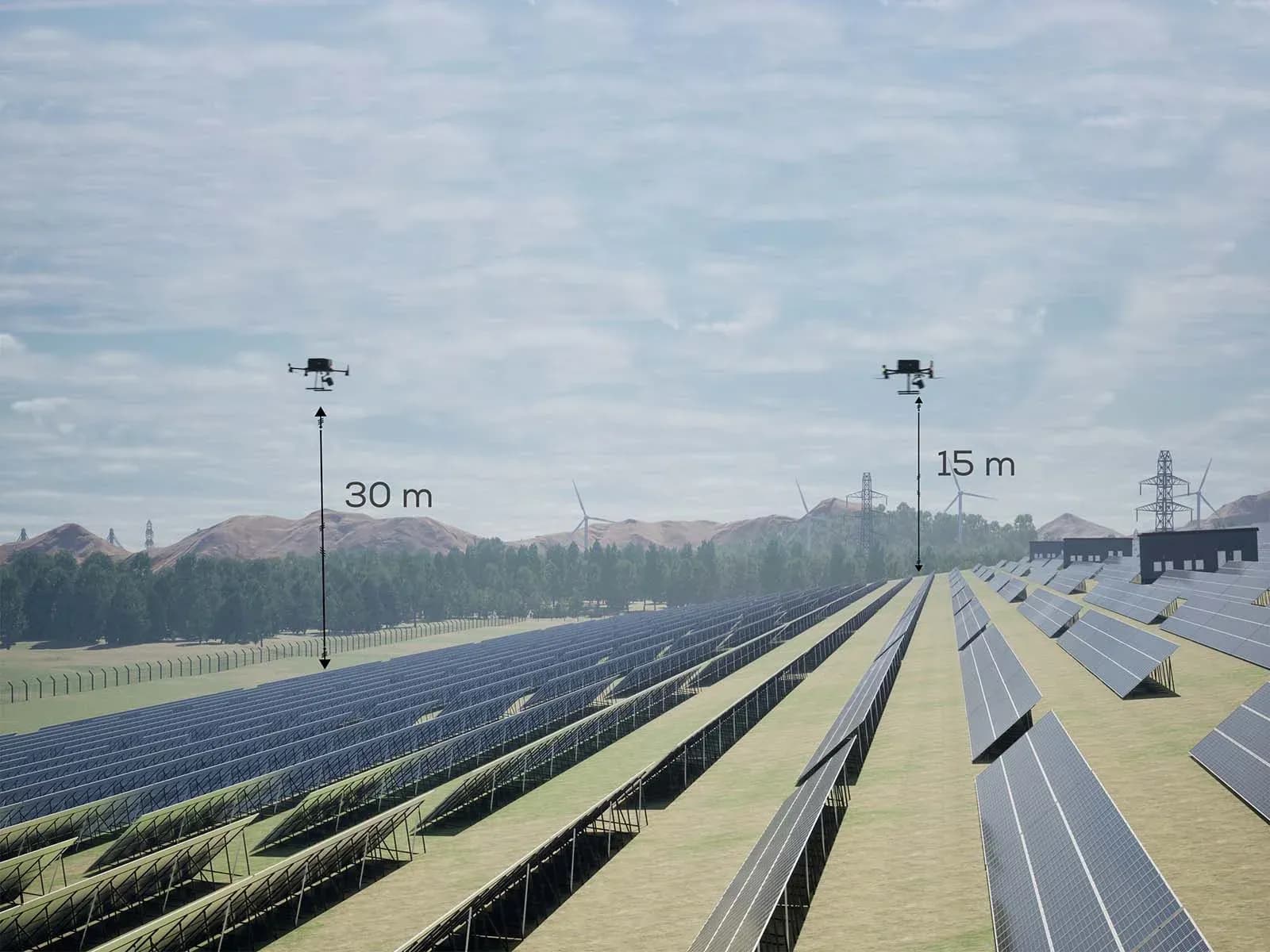
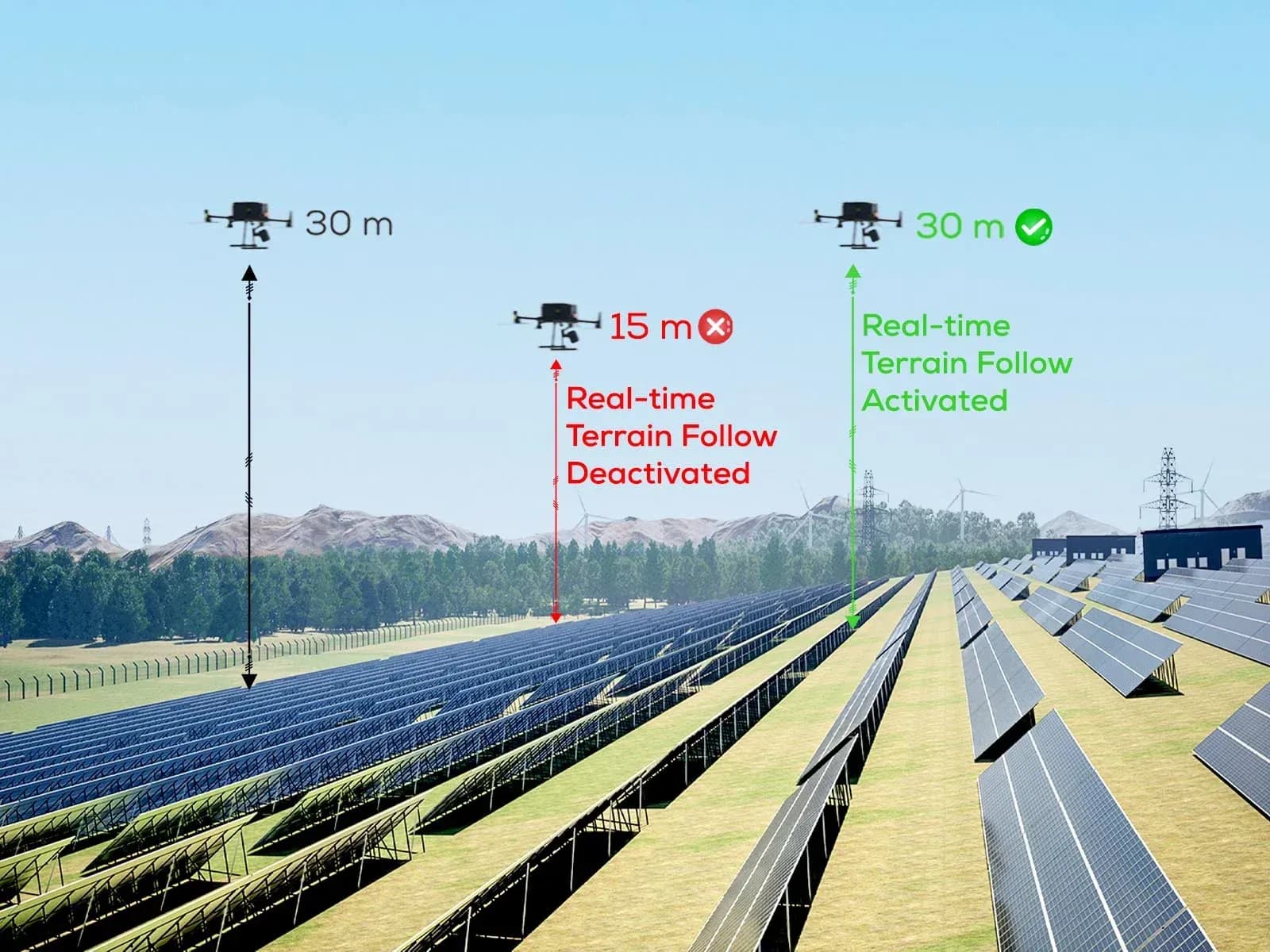
For the supported Mavic 3 Enterprise-series configuration, the March 2023 update lowered the Real-Time Terrain Follow minimum from 80 m to 30 m. DJI described a supported 30 to 200 m range at that time. This historical software limit is not a recommended PV inspection altitude or a guarantee of sufficient thermal detail.
Sensor-based Real-Time Terrain Follow and DSM-based terrain following are different workflows. Sensor operation depends on the supported aircraft and environmental conditions; a DSM workflow depends on the accuracy and currency of the elevation data. Neither guarantees clearance from every obstacle or reliable tracking in all terrain conditions.
3. New Camera Angle Settings for Mission Planning (Mavic 3 Enterprise Series)
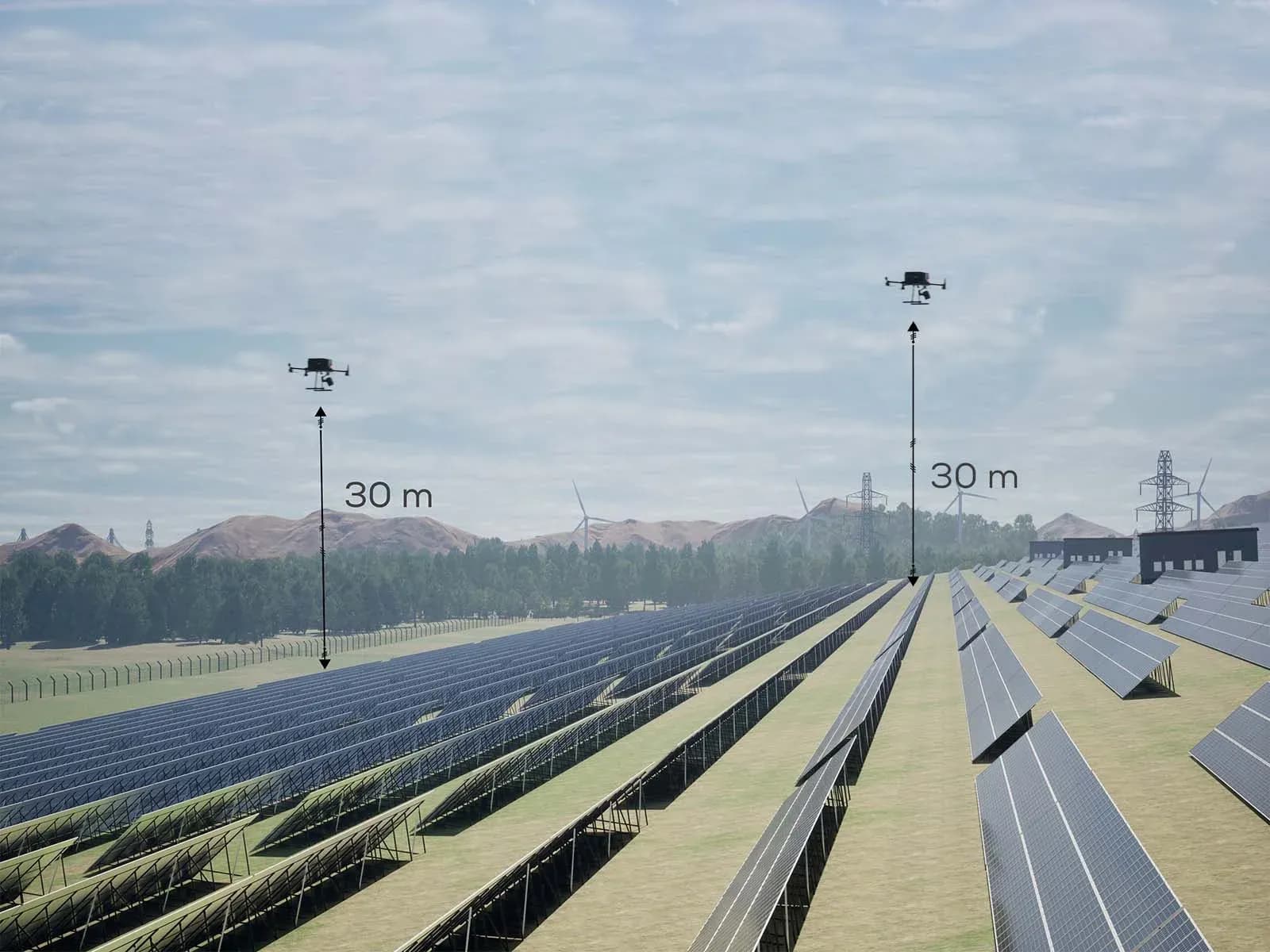
You can now adjust the orientation and angle of the camera gimbal when planning autonomous flight missions. This can be especially valuable in civil engineering scenarios and solar panel inspections where the camera needs to be perpendicular (or at an angle) to the PV panels. This allows for more precise data collection and more effective analysis.
4. New Adjustable Infrared Parameter Function for Mavic 3T
The Mavic 3T update added adjustments for target emissivity and temperature-measurement distance, as specified in the March 2023 release notes. Emissivity is a surface radiation property, not a synonym for reflectivity. Use settings appropriate to the target and method; changing them cannot repair blurred images or remove reflected radiation.
5. Smart Low Light Photo Feature for DJI Matrice 30 Series
The March 2023 announcement added Smart Low-Light Photo as a waypoint action for the M30 series. This visual-camera function does not establish suitable conditions for PV thermography: operating-array thermal inspection still requires the appropriate solar and electrical conditions.
6. Zenmuse L1 Calibration Reminders for DJI Matrice 300 RTK
IMU calibration supports the Zenmuse L1’s LiDAR accuracy. DJI’s guidance for the M300 RTK/L1 V4 firmware workflow (L1 v04.00.01.06) calls for calibration before data collection, every 100 seconds during manual data collection, and again afterwards; this means a calibration maneuver, not a new flight mission every 100 seconds. For mapping, oblique and linear missions, automatic calibration sections are added when the IMU Calibration option is enabled in the route settings. In manual flight, the operator initiates calibration and follows the on-screen prompts. DJI’s 10 March 2023 firmware announcement introduced manual-flight calibration reminders in DJI Pilot 2 and described a clear 30 m space ahead of the drone for the maneuver; that historical wording is not a universal obstacle-clearance guarantee. Before initiating calibration, follow the applicable L1 manual and firmware prompts, enable obstacle sensing as instructed, and inspect the maneuvering area shown on the map to ensure it is free of obstacles. Pressing the calibration button does not perform or replace that inspection. DJI sources: Source ; Source ; Source
7. Common New Features: Mavic 3E/3T, M30/30T and M300 RTK
Terrain Tracking, Integration with Mission Modes
Now you can use the super convenient Terrain Following feature available on Mavic 3E, M30 and M300 RTK drones, with Oblique and Linear flight planning modes. With the M300 RTK, Terrain Tracking is also available with Smart Oblique Capture when using the P1 sensor. This increases the flexibility of mission planning modes, allowing them to be used in areas with variable terrain.
These developments are particularly important for users of the DJI Mavic 3 Enterprise series, as the drone’s turbocharged terrain awareness feature, Real-Time Terrain Tracking, is now also compatible with Smart Oblique Capture. You can easily make 3D models of areas with high altitude differences, not just shots above the target.
When using terrain tracking for DSM, you can import your own data or download terrain from the internet in the Pilot 2 app.
9. Improved Support for Offline Maps in Pilot 2 App
You can prepare your own data in mbtiles format or download various offline maps from the Maptiler website and use them in Pilot 2. Download street maps, available up-to-date satellite imagery or important layers of information (search and rescue) before losing internet connectivity, then access the stored data offline. It also offers fully offline satellite map data for users who do not want to connect to the internet for security reasons, or for users deployed in remote areas where internet is not available.
10. Cross-Compatible Polygon Mapping Mode for Team Missions (FlightHub 2 Users)
DJI FlightHub 2 is DJI’s cloud-based drone operations platform, not a MapperX product. The announced Polygon Mapping Mission feature supported sharing a mapped area with field teams for compatible mission workflows.
For example, during a search and rescue (SAR) mission, the commander can use his computer to draw a polygon over the area of interest and assign it to a pilot in the field. The drone operator picks up the polygon on their remote control. When they select the polygon, they show a button that will direct the drone to automatically map the area designated by that polygon.
11. New Safe Take-off Altitude Option
The announced Safe Takeoff Altitude setting controls the mission’s initial climb before proceeding along its route. It is not an airspace authorization, an obstacle-clearance guarantee or a substitute for checking the takeoff area and mission path.
12. Password Protection for Local Data Mode
You can now set a password to turn Local Data Mode on and off. This prevents unintentional shutdown of the mode due to accidental key changes. After setting a password, you can change the Network Security Mode or configure function settings.
Other Enhancements
The historical release also included interface and log-export improvements. For field use, validate the installed version against a representative solar thermographic inspection workflow rather than relying on a feature announcement alone.
Update Preparation and Post-Update Checks
Schedule updates before the inspection mobilization, not immediately before an essential flight. Record the current version set and save required mission files and inspection data. Use the aircraft’s official downloads and the correct enterprise edition of DJI Assistant 2 if the applicable instructions require it.
- Charge aircraft and controller batteries to the levels required by the current manual, provide a stable connection and keep equipment stationary during installation. Do not interrupt power while an update is running.
- Follow on-screen restart instructions. Check additional flight batteries for firmware prompts rather than assuming that updating one installed battery updates the whole set.
- After completion, review aircraft health, camera capture settings, positioning, return-to-home settings and a saved mission. Conduct a safe short flight and inspect sample thermal and visual files before releasing the aircraft for survey work.
The DJI Mavic 3E/3T user manual describes the model’s firmware-update process. If an update fails, retain the error message and logs and follow model-specific recovery guidance; do not substitute a package intended for a similar-looking aircraft.
Frequently asked questions
Do all DJI enterprise drones receive the same features?
No. A shared announcement can include different capabilities for different aircraft, payloads and applications. Match each feature to its model and compatible version set in the release notes.
Does updated firmware guarantee better thermal measurements?
No. Firmware may change available controls or resolve a documented issue, but measurement quality still depends on the sensor, acquisition conditions, target properties and correct interpretation.